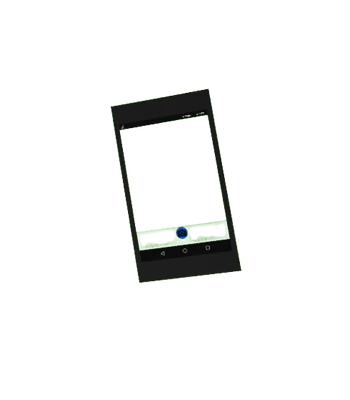
When held for the first time within a session, an arrow will pop up next to your phone, which appears next to the power button. Hold-pressing it will then boot up Nulltech, allowing you access to your phone. You can also press it again to put the phone to sleep, and hold it to shutdown.
The Phone is also the only item that is kept throughout all of the events within Bus Simulator, allowing you access to it anywhere you go. It can also crack, if you get hit by a moving vehicle or a 2 ton slab of concrete, which can only be repaired by accessing Pear's Place.
The general features that the phone provides are basically akin of that of normal phones. The top-left displays the time, synchronized with your real-life time and can be configured to display either in seconds or in a 24-hour format within your Settings. Swiping down from the upper edge shows you your notifications and quick-access buttons.
There will also be three buttons on the right (or left if space is unavailable) outside of the phone, going from top to bottom, the top opens your notifications, the middle sends you back home, and the bottom backs out of / or in an app.
The quick-access actions, going from left to right are of the following:
| Actions | Description |
|---|---|
| Flashlight | Allows you to turn the phone into a flashlight. It's synchronized with either your cursor or your finger when pointed outside of the screen. Does increase battery drainage. |
| Airplane Mode | Enables Airplane Mode, disabling all cell reception on your phone. It also disables purchasing items within the shop, messaging, and downloading any apps. It also massively reduces your battery drainage by preventing the phone from trying to reach any cell towers. |
| Do Not Disturb | Disables you from recieving any messages, calls, or notifications. Currently is non-functional. |
| Battery Saver | Darkensim your screen, reducing your power consumption. |
| Volume Adjustment | Adjusts the volume of your system, notifications, and media. |
You also will start off with a few apps by default, being a Dialer, Messages, Settings, Get Help, and STAR.
In reality, various things can put your battery under load, draining it faster.
To ensure a long-lasting battery, follow these tips:
| Actions | Battery Impact |
|---|---|
| Staying at The Bus | Charges your phone. - By default it charges 1% every 3 seconds, or 100% after 5 minutes. Can be affected by multiple factors. |
| Shutting off your phone | Massively reduces battery drainage, only if it's necessary. |
| Activating Battery Saver | Massively reduces battery drainage in general. - If it's only activated, increase the time to drain by 1% every 12 seconds or 1% every 5 seconds under a no cell reception area without Airplane Mode. - If both Airplane Mode and Battery Saver are active, remain at 1% every 12 seconds. |
| Activating Airplane Mode | Insignificantly / Massively reduces battery drainage if under areas with no cell towers. - If it's only activated and is in an area with cell reception, increase the time to drain by 1% every 8 seconds regardless of cell reception. - If both Airplane Mode and Battery Saver are active, remain at 1% every 12 seconds) |
| Putting the phone to sleep | Significantly reduces battery drainage. |
| Staying at Frost's Den | Charges, but does not increase battery. Remains at the same percentage it was before entering. - If activated with Flashlight, start the battery drain by 1% every 16 seconds. - If combined with Flashlight and Battery Saver with / without Airplane Mode, remain at 1% every 16 seconds. |
| Going anywhere except The Bus or Frost's Den | Starts battery drainage. - By default without any modes and with the phone simply on, it drains 1% every 8 seconds. |
| Activating Flashlight | Mildly increases battery drainage. - By itself, it drains 1% every 7 seconds. - If combined with No Airplane Mode under a no cell recepted area, decrease the time to drain by 1% every 2 seconds. - If combined with Battery Saver and Airplane mode, decrease the total time to drain by 1% every 7 seconds. |
| Staying at The Backwalls or The Void ...with Airplane Mode Off |
Massively increases battery drainage. Your phone will try as much as it can to connect, creating extreme battery load without Airplane Mode on. - When the phone is doesn't have any modes on, decrease the time to train by 1% every 3 seconds. - If combined with Flashlight, decrease the time to drain by 1% every 2 seconds. |
You can also invest in a Battery Pack gamepass to effectively double the lifespan of your phone or others too.
Hold-pressing on the home screen will allow you to add widgets or directly customize your wallpaper and Drag-holding the moment before the context menu (App Info, Add to Shelf & Remove) appears will allow you to move the app / widget around.
You can also change how time is formatted, to either being 24-hours and / or having seconds as part of the clock and what system it's currently on. The following time systems are:
- Operating System - Is based on your device's operating system's time, or most often than not- your real life time.
- In-game Time - A system based within the game's own time for its day and night cycle. Moves at around 3 in-game minutes per real life second.
- .beat - A decimal time system made to market a line of .beat watches. Divides the entire day into 1000 beats with each beat lasting 86.4 seconds in real time.
You can also view your phone, in which it will detail all of its device information, and just like in real phones, pressing the build number more than a few times gives you access to Developer Tools.
To communicate with anyone privately, click the button on the bottom-right to start a conversation. From there, you can either start a conversation from anyone within the server as you, or start one outside; assuming you provide their username / User ID. Conversation data will also be saved once a conversation starts.
One last extra detail is that chat bubbles are colored based on your username color on Roblox.
Information about these apps individually are reserved in another page.
More information is within its own individual page.
Likewise, more information is within its own individual page.
| Button Combo | Interaction |
|---|---|
| B/Top Button | Powers the phone on/off |
| A/Bottom Button/Left Trigger | Go to the home screen/all apps page |
| Left Analog Click | Open/Close Notification Screen |
| Right Trigger + A/Top Button | Turns volume up |
| Right Trigger + B/Bottom Button | Turns volume down |
- The boot-up screen of Nulltech can tell if your data has been saved and loaded properly. If there are sparkles around Nulltech when booting up, then your data was both successfully saved and loaded.
- The time system doesn't display AM / PM within the 12-hour format.
- The background of your avatar and your chat messages within the Messages app is directly linked with your chat color on Roblox.
- Trying to start a conversation with yourself using the Messages app will just tell you to use Notepad for it.
- Clicking, typing, and using the flashlight all have their own unique animations for the player.
- The original phone, one that has been prevalent throughout the majority of Bus Simulator's life was a drastically simpler version, being a simple-handheld that allows you to activate a flashlight and also displayed the in-game time.
- VR players hold their phone in their left hand. This is so they can use their cursor, which can only be used on the right hand.
- The phone used to have another tooltip being "Runs something or other!", but was unknowingly altered.
- If you managed to escape outside of the Backwalls through unconventional means, the Phone will still be under its effects, and surprisingly won't be able to charge nor have any network connection even as you're idling on The Bus.
- The power part however, can be circumvented using a Battery Pack.