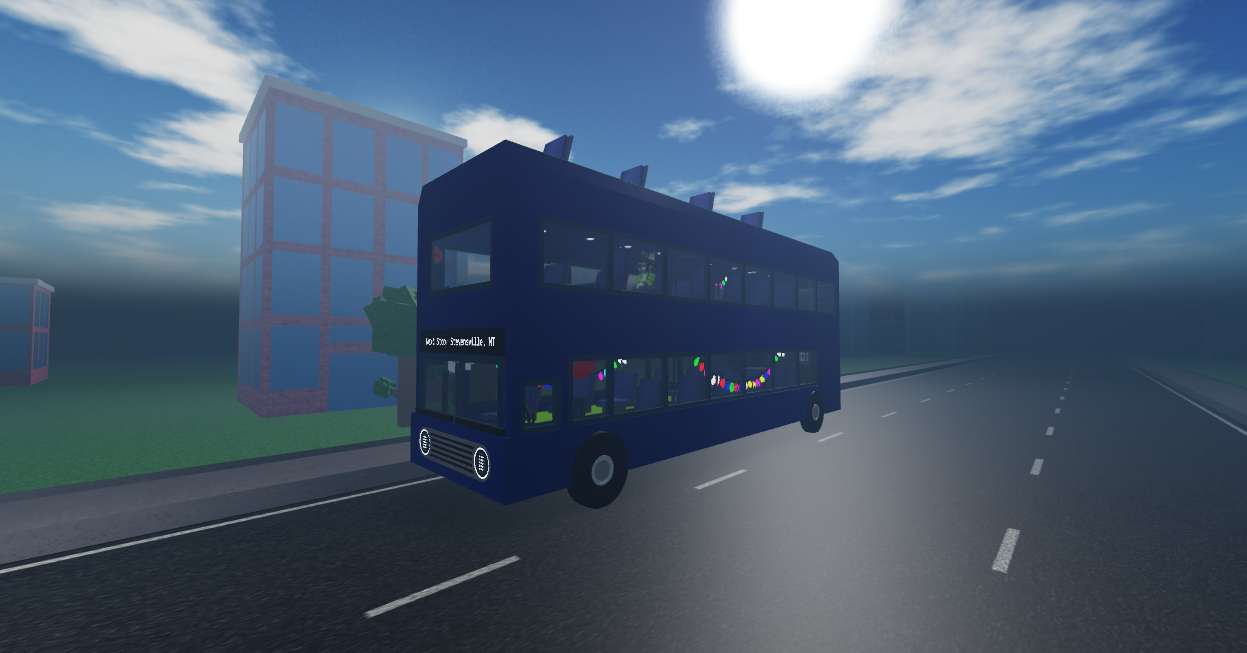
VR is a method of playing for all Roblox games, with varying degrees of compatibility. For Bus Simulator, VR is mostly compatible with little to no hinderance, and even offers you a few perks for playing with a headset. Information regarding playing with VR is detailed below.
NOTICE - FOR NON-OCULUS
As of July 7th, 2023, ROBLOX VR does NOT work that well for any Non-Oculus VR Platforms, as they haven't been working on updating their OpenXR support. The game is still playable, but controls may be harder to work with.
Setting Up VR
Oculus
To set up playing Bus Simulator with a wired VR cable, it can be as simple as downloading Roblox off of its store. To start, you need one of the following:
SteamVR / Non-Oculus
Roblox can work with non-Oculus VR products, but may not work properly, as ROBLOX only has proper support for Oculus. You need one of the following to work:
Virtual Desktop
Airlink (Quest 2)
If you own an Oculus Quest 2, you can play Bus Simulator. To do so, you need:
Item Usage
All of the items you obtained/purchased will spawn in your inventory, just like you're playing normally.
What Items Work?
The following items work as intended in VR (Please note that not every single item was tested in VR yet.):
Accessing your Backpack
To access your backpack, simply click and hold the right Analog stick, hover the dot over which item you want to use, and then let go to equip it.
What can I do in VR?
You can enjoy Bus Simulator the same way that everybody else does, which means you can hangout, chat with friends, experience events, etc.
How do I chat in VR?
To chat in VR, look at your right wrist, and simple hold own your right trigger. A keyboard will pop up, and you can start typing by pointing at the key and pulling the respected trigger for which key you're pointing at (i.e. Left Hand over the letter G).
Settings
You can even access your in-game settings in VR, and saves specifically for the platform. To access them, open the UI (Up on the touchpad for Valve Index/arrows in the ROBLOX Hotbar), and click on either the Performance, Sound, or Chat settings. Do note that Chat Settings does NOT affect the chat log on your wrist in VR.
Nexus
To access the Nexus Settings, look at the ROBLOX Hotbar, and click on the Nexus Menu (NM Icon), and change any desired settings there. To close it, click on the Nexus Menu icon again.
Controls
Note: This page only goes over any additional controls that NobleReign has added.
Mini-Bus Controls
As stated before, the Mini-Bus can be driven in VR, but has its own unique controls.
Wrists
Your wrists have some important features. Your right wrist will have the Chat, as well as a prompt to hold left trigger to send a message, which opens up a keyboard. On your left wrist, it will have the Event messages, as well as your ping, frames per second (FPS), and server info. This is useful for when you want to know whats happening.
Issues
- A USB 3.1 port
- Oculus Link Cable (1st or 3rd party)
- VR-Ready Computer Device
- Rift/Rift S Headset
- SteamVR installed and properly set up
- Link cable
- A compatible PC
- 5hz network
- Meet the Oculus link requirements
- OR the official ROBLOX app (Quest 2-3 Exclusive)
- Phone
- Popsicle
- All Colas
- All Event Items
- Pizza
- Sign
- All Megaphones
- Gameboy Advance (Appears on UI)
- GPS (Appears on model)
- Hoverboots
- It's highly recommended to not use this if you have it, as it can cause motion sickness. If you have confidence that you're resistant to motion sickness, proceed with caution.
- Helicopter
- Mini-Bus
- Magic Mirror
- Candied Cane
- Almond Water
- Liquid Void
- Sparkler
- Bus Birthday Cake
- Gas Station Gravity Coil
- All Ice Cream Variants (Regular, Birthday, and Gas Station)
- Compass
- Spronkbib Popsicle
- Marker (Mostly)
- The marker itself and parts of the UI is usable, but you cannot select a custom color, even if you have the gamepass.
- Balloon
- New Years Chocolate
- P15-Maisto
- Your triggers can also be used to climb, a useful feature in NobleReigns games. You can hold onto and climb any surface with collision enabled, and scale anything you want, which gives you an edge over other players, as this can be used as an easy way to traverse tall gaps without items like [[Hoverboots]]. You also obtain [[:Category:Items|items]], interact with [[:Category:NPCS|characters]], and other features.
- If you have the Teleportation movement enabled from the Nexus menu, push your analog triggers up, and hover the marker (Blue circle and green sphere) to where you wanna teleport to. You can teleport with both analog sticks, but only one can be used at a time, and teleporting has no cooldown.
- You can also click on your right analog stick to open your inventory, allowing you to select an item you want to use. If you have a Valve Index, you can also use the touchpad.
- Hold down the right trigger to accelerate.
- Hold down the left trigger to to slow down/go in reverse.
- Hold the jump button (Bottom button on the right controller) to start drifting.
- Tilt your arms in the direction you want to go to steer. Using one arm rotates half as much, compared to both arms.
- When first joining in VR, if you chat, you sometimes won't get a tag that says "[VR]". This mainly happens to Non-Oculus users.
- When small, you can run extremely fast, but climbing is harder to do.
- When you're outside of the bus (doesn't include locations like Backwalls and No Dough/Santa's Missing), and the bus speeds up via event or commands, you will be pushed to the back of the world, by the door.
- If you're holding onto an object with collision and it disappears (i.e. Traffic Light), you're able to hold onto it as long as you keep the trigger held.
- Other players can physically get in the way of your keyboard when you're trying to type.
- When you put away the Mini-Bus, some of your accessories will be visible in your view, the issue varies depending on how many accessories appear in front of your avatar.